
Notes from the Desk · No. 08
The Accounts Every Business Owner Should Hold in Their Own Name
Your domain, hosting, email and logins are business assets. Here's what to own, how to check you own it, and how to keep it safe.

Picture a bakery owner with a problem that has nothing to do with design. Her website went dark overnight. The domain expired. The renewal notices went to the email address of a nephew who built the site six years earlier, and the nephew moved to Denver, changed numbers and stopped checking that inbox around the time he graduated.
If she’s lucky, she gets the domain back after a week of phone calls and paperwork, while every customer who tries to order a birthday cake lands on a parked page full of ads. Expired domains can get scooped up and resold, and some never come home.
It happens more often than you’d think, and it’s rarely the owner’s fault. Nobody ever told her that her domain, her hosting and her business email were assets, as real as the ovens, and that they needed to be in her name. Here’s the note we’d hand her first.
The six keys
Every business with a website has the same handful of accounts underneath it. You don’t have to manage them day to day. You do have to own them.
1. The domain.
Your address on the internet: yourbusiness.com. You rent it a year or more at a time from a registrar, such as Namecheap, Cloudflare, GoDaddy, Squarespace or your web host. Whoever is listed as the registrant controls it.
2. The hosting.
The server that stores your website files and shows them to visitors. Sometimes it’s bundled with a website builder. Sometimes it’s a separate account with a host such as Hostinger, SiteGround or WP Engine.
3. The website platform login.
The admin account for WordPress, Squarespace, Wix, Shopify or whatever your site runs on. This is where content gets edited.
4. Business email.
The service behind you@yourbusiness.com, often Google Workspace, Microsoft 365 or your host’s email.
5. Your Google Business Profile.
The listing that shows your hours, photos, reviews and map pin when someone searches your name or “bakery near me.” For many local businesses it gets more views than the website itself.
6. Social accounts and ad accounts.
Facebook, Instagram, Google Ads and anything else that carries your name or your credit card.
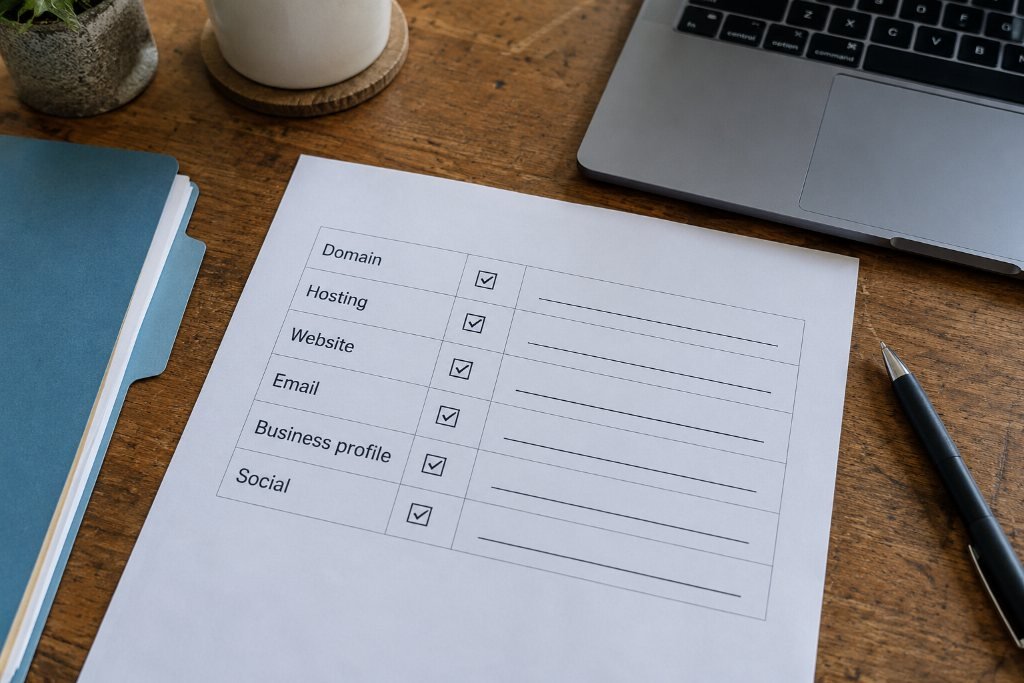
The test: could you get in tonight, without calling anyone?
Open a blank page and write the six keys down the side. For each one, answer three questions:
- Whose name and email is the account under?
- Do you have the login, right now, written down somewhere safe?
- When does it renew, and which card pays for it?
If any answer is “I’m not sure” or “my web person handles that,” you’ve found the job for this week. That doesn’t mean your designer or developer is doing anything wrong. Plenty of good professionals set up accounts on a client’s behalf to save time. It just means the paperwork never caught up with reality.
How to check who owns your domain
This one matters most, so let’s walk through it.
1. Find your registrar. Search “ICANN lookup” and enter your domain. The result shows which company the domain is registered with and when it expires. (Contact details are often hidden behind a privacy service, which is normal and good.)
2. Log in to that registrar. If you can, check that the account email is one you control, ideally an address at a service you’ll keep for years, not your old internet provider’s email.
3. If you can’t log in, ask whoever set it up to either transfer the domain into an account in your name or add you as the owner. Most registrars have a simple “push” or “change of account” process for this.
4. Turn on auto-renew and put a card on file that won’t expire in the next few months.
5. Renew for several years if you can. It costs a little more today and removes a single point of failure for a long time.
6. Turn on the transfer lock, sometimes called registrar lock. It prevents anyone from moving your domain to another company without your approval.
One thing to know: registrars typically won’t let a domain move to a new registrar for 60 days after it’s registered or transferred, and often after ownership details change. If you’re planning a move, plan ahead.
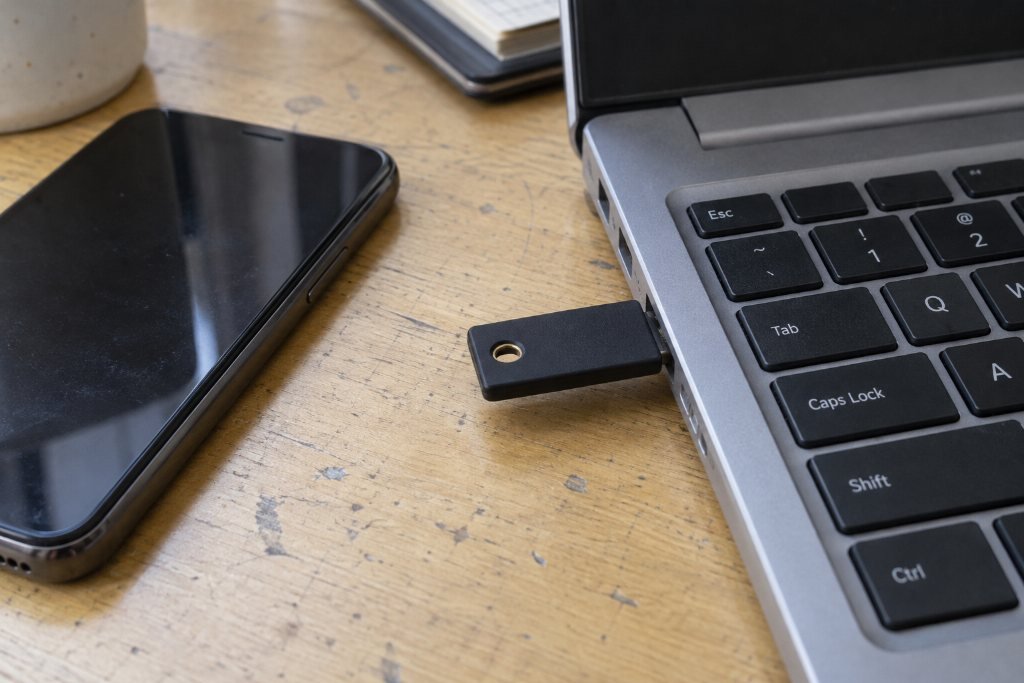
Lock the doors
Owning the accounts is half the job. Keeping strangers out is the other half.
- Use a password manager. 1Password, Bitwarden and the built-in managers in Apple and Google devices all work. One strong, unique password per account, stored in one place, is safer than a notebook and far safer than reusing the same password everywhere.
- Turn on two-factor authentication for the domain registrar, hosting, email and website admin at a minimum. An authenticator app is stronger than text messages.
- Give people their own logins. If a designer, bookkeeper or marketing helper needs access, add them as a user with their own account. Don’t hand out your password. When the work ends, remove their access, and nothing breaks.
- Save the recovery codes. Every two-factor setup offers backup codes. Store them in your password manager. They’re the difference between a five-minute fix and a week of support tickets if you lose your phone.
Keep a one-page “keys” sheet
Put it in your password manager as a secure note, or print it and keep it with your important business papers. For each account, list:
- The company and the login web address
- The account email
- When it renews and roughly what it costs
- Who else has access, and why
Then add one more line at the top: who should have access if you can’t be reached. A business partner, a spouse, a trusted manager. If you were out for a month, could someone keep your website and email running?
What to ask before you hire anyone to build your site
This applies to us, too. Before any project starts, ask:
- Will the domain, hosting and website accounts be in my name, with my email?
- If you set something up for me, when will you transfer it to me?
- Who pays for hosting and renewals after launch?
- When the project ends, what do I receive? Logins, files, fonts, original photos?
- If we stop working together, what happens to my site?
A good studio answers all of these quickly and in writing. Here’s ours: you own everything. Your domain, your hosting, your logins and your files are in your name from the start. If you ever leave, you take the whole house with you, keys included.
Not sure who holds your keys? Send us your web address and we’ll tell you where your domain and hosting live, free, as part of a redline.
Request a Redlinethe notes come to you
Get the next note first.
One note, when it’s ready. Usually monthly. No noise you didn’t ask for, and your email never leaves the studio.
You’re on the list. The next note will find you.
That didn’t go through. Email inquiries@southandstonestudio.com and we’ll add you by hand.